Pages
Pages are the core of your documents in Hillnote.
For instance, this is a page about "Pages!"—a bit meta, I know. 🤯

Hillnote files are stored as markdown
What this means for you?
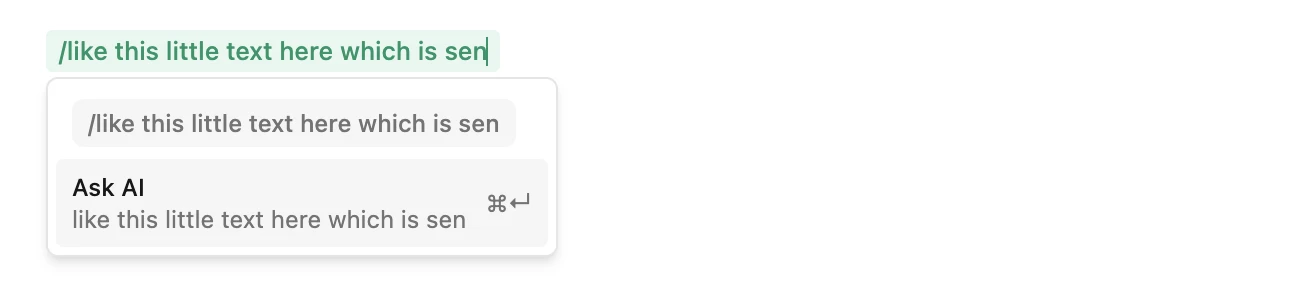
If you are familiar with markdown standard markdown commands work. If you need help we always have the ‘/' command or the toolbar to help.
‘#’ for headings
‘-’ for bullets
‘1.’ for numbered lists
and more!
You can always click “source mode” to see the raw markdown
Shortcuts are your best friend
Hillnote has certain shortcuts outside of markdown syntax to help you supercharge your workflow
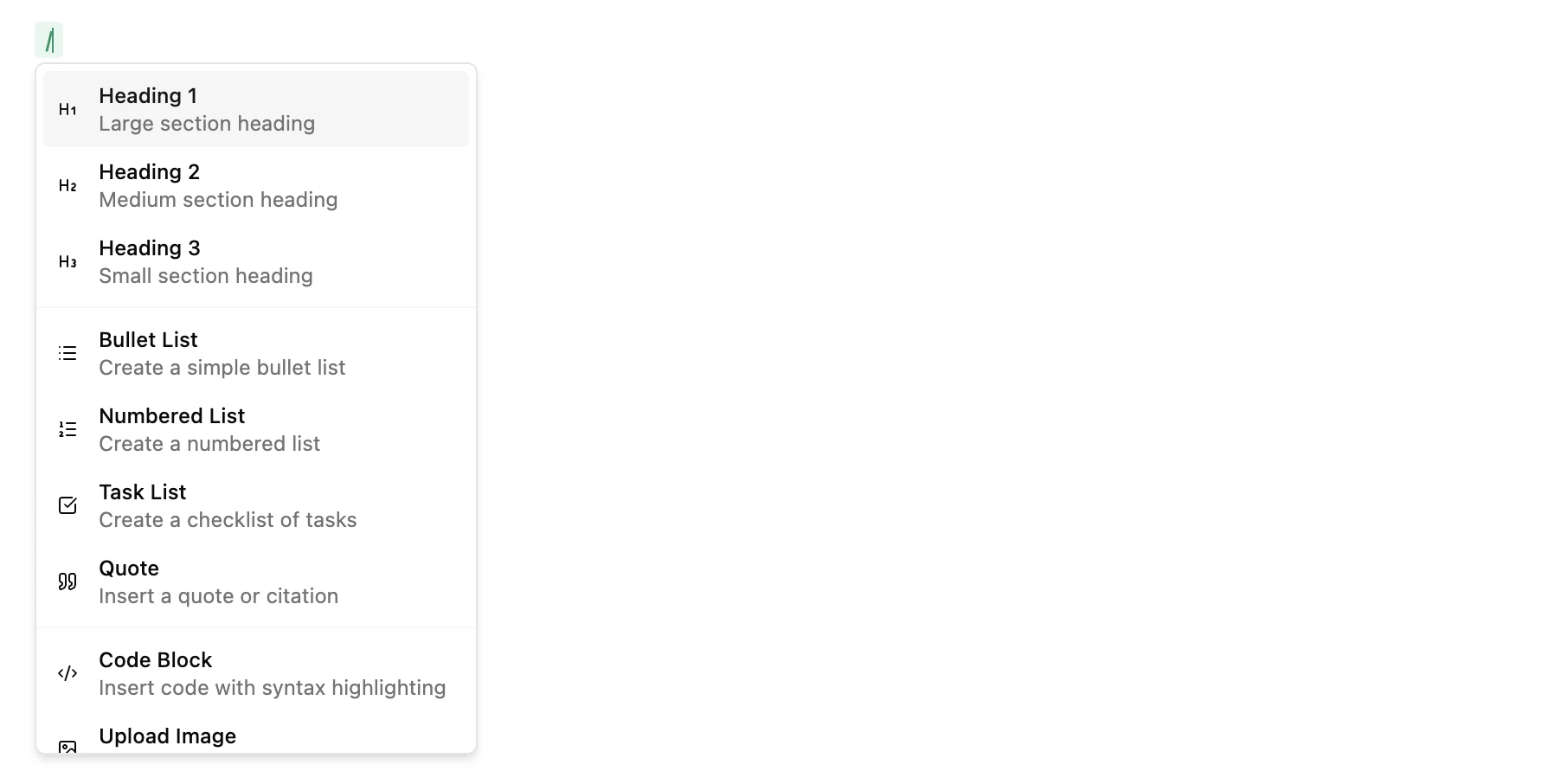
The ‘/' command
It does one of 2 things
Helps you search for different formatting types
Allows you to directly send a question to AI
 Ask documents a question by using ‘/’ + ‘@’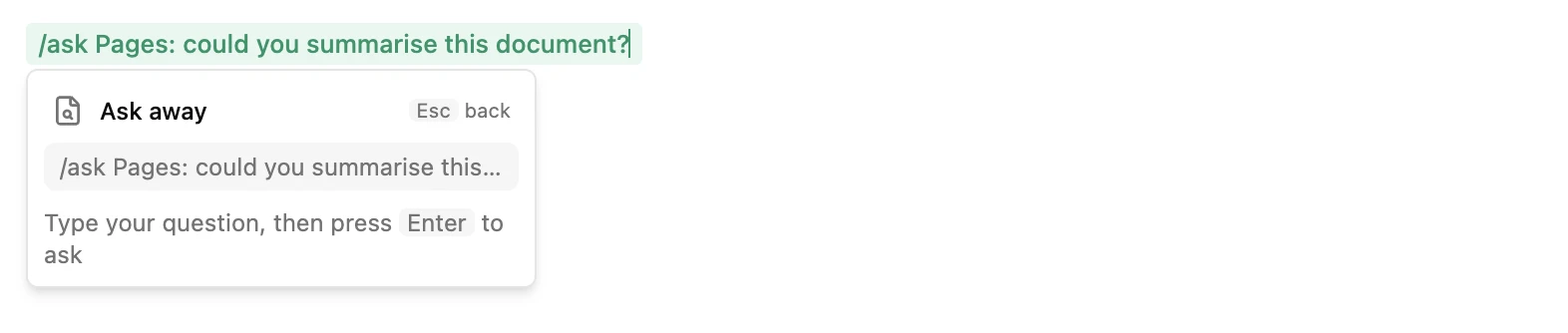
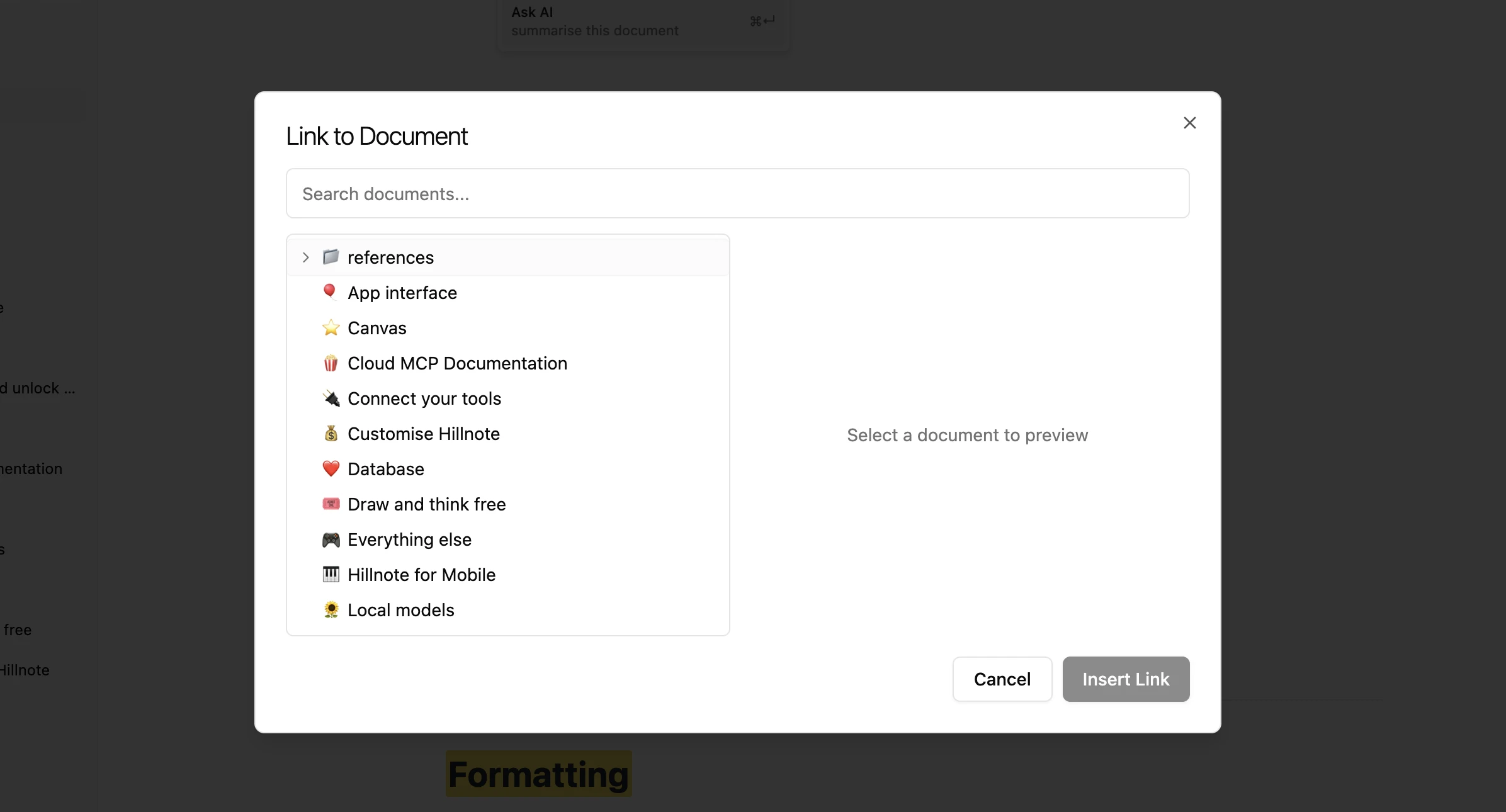
The ‘@’ command
Helps you link a document to the page like this → Complete formatting guide
The ‘#’ command
Helps you add topics like #formating-reference, etc
Formatting
Everything that could be accomplished in a Page is in Complete formatting guide
Using AI
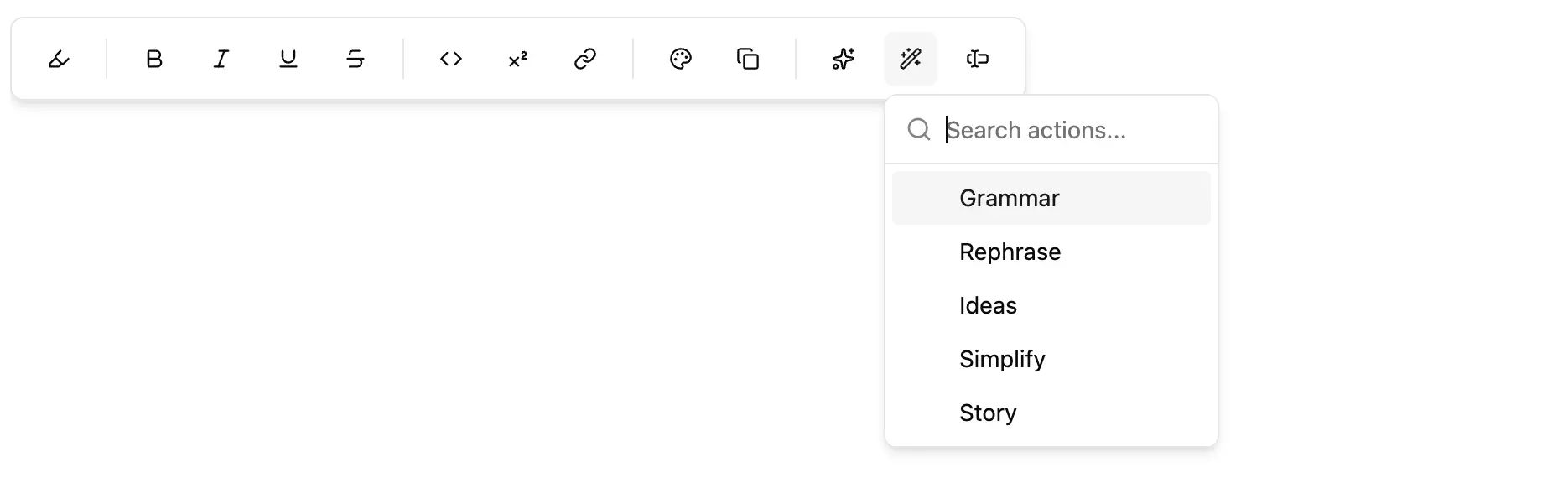
Local AI is made available via the ‘/' command or by selecting text in the document.
 You also have a list of selections of pre-made configurable prompts in 🪄 in the selection menu. You can configure these in settings. Customise Hillnote details how.
 Selecting text and pressing CMD/CTRL + K opens a custom prompt dialog which then allows you to send any command to the model of your choice.
How does AI interact with your document
AI output can appear in one of 2 ways.
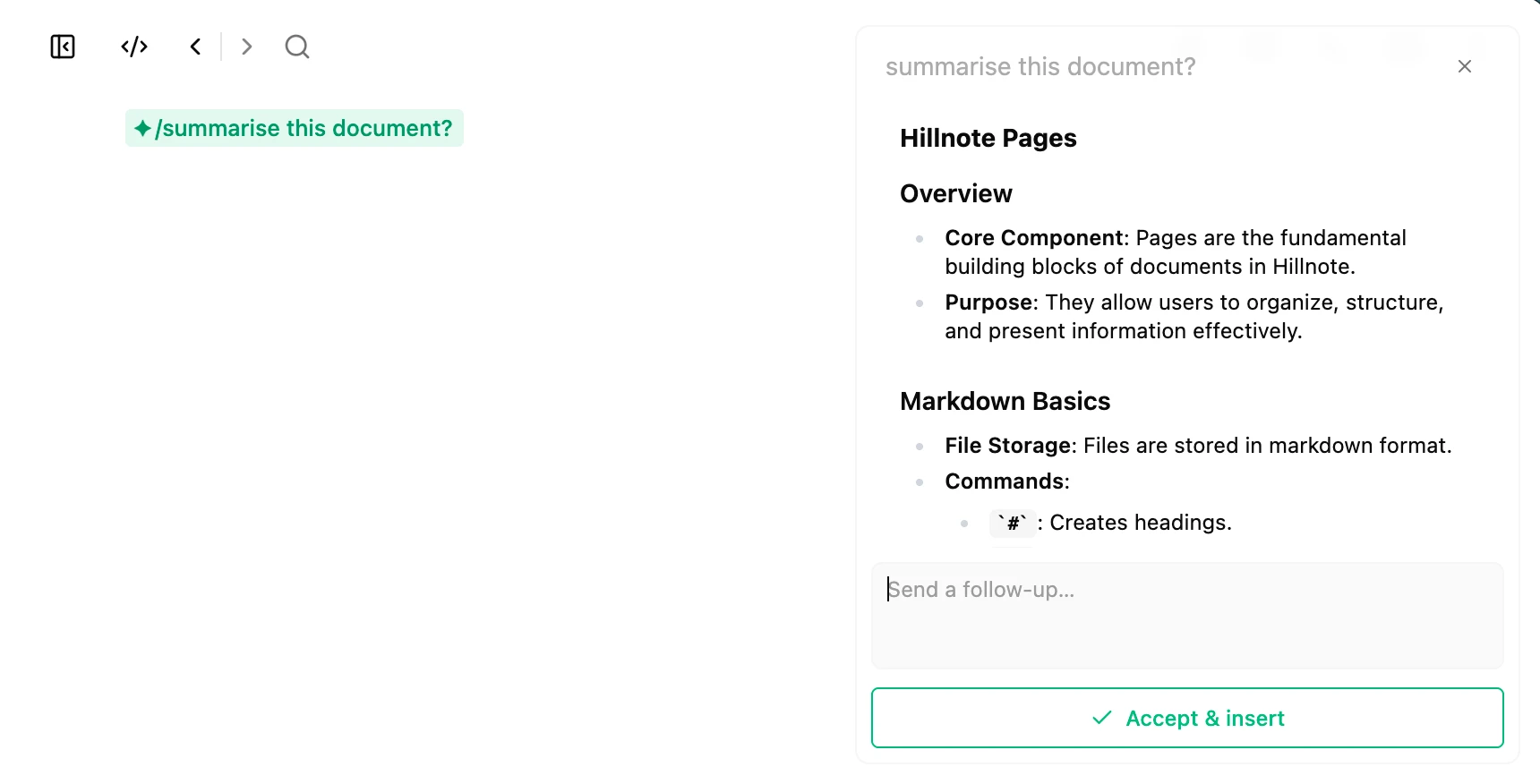
Method 1 - Followup mode
Here a side-panel opens with your response and allows you type followups to the model until you get the result you are looking for.
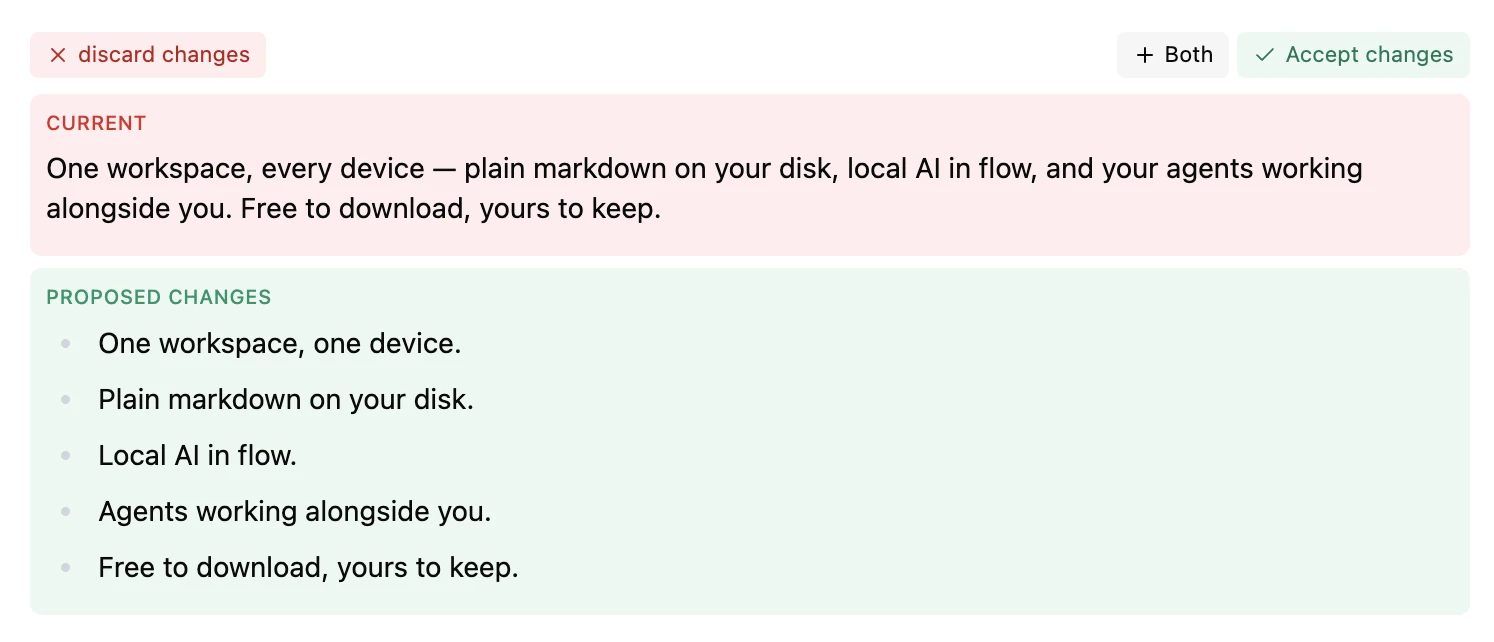
Method 2 - Replace and Diff
Sometimes in quick iterations the model will render its response within the document and you will be able to view a diff of the 2 options available.
Embed anything
Simply use the ‘@’ symbol and link a Database, Slide or Canvas.
You can also link a Weblink, Figma file and more by using the ‘/' command.
Some examples are available in Complete formatting guide
Reveal, move, edit the file elsewhere
In the Sidebar click the 3 dot menu and reveal in finder.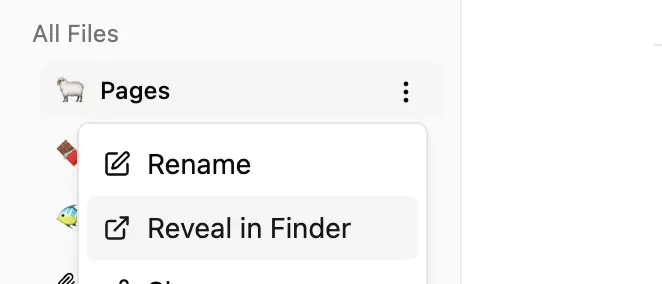
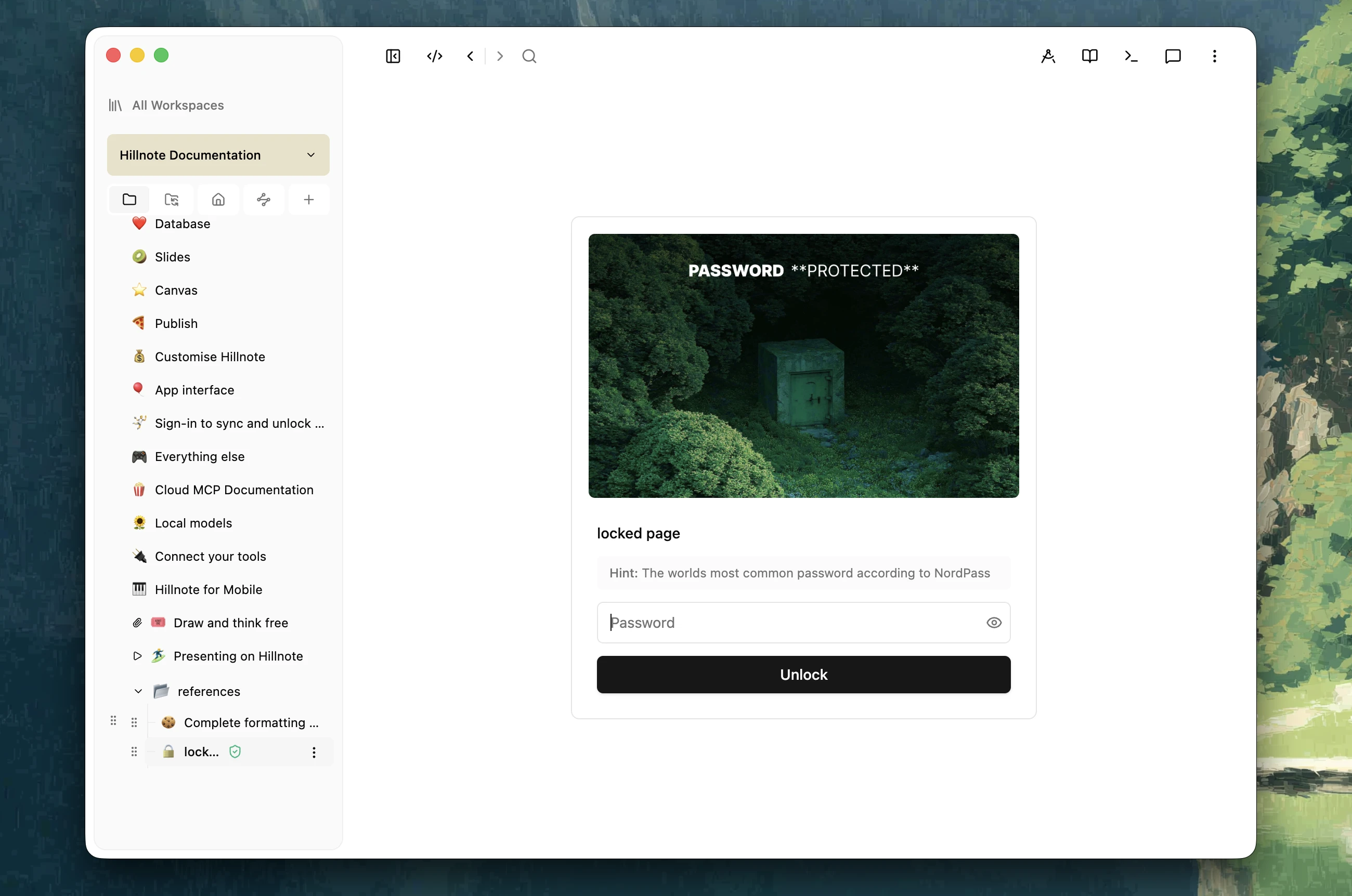
Lock a page
You can lock a page with a password. This encrypts the page and no one can read it, not even us.
You need password to decrypt and the password is not stored anywhere. Click 3 dot menu in sidebar > lock with password to lock a document.
These are encrypted files and the only way to decrypt them is with the password. It stays this way through sync. The password is not stored by anyone including us.