
Database
Databases are nothing but organised folders. All files in the folder have YAML headers which help distinguish them as individual rows. Hillnote databases can take multiple forms and theres are called views.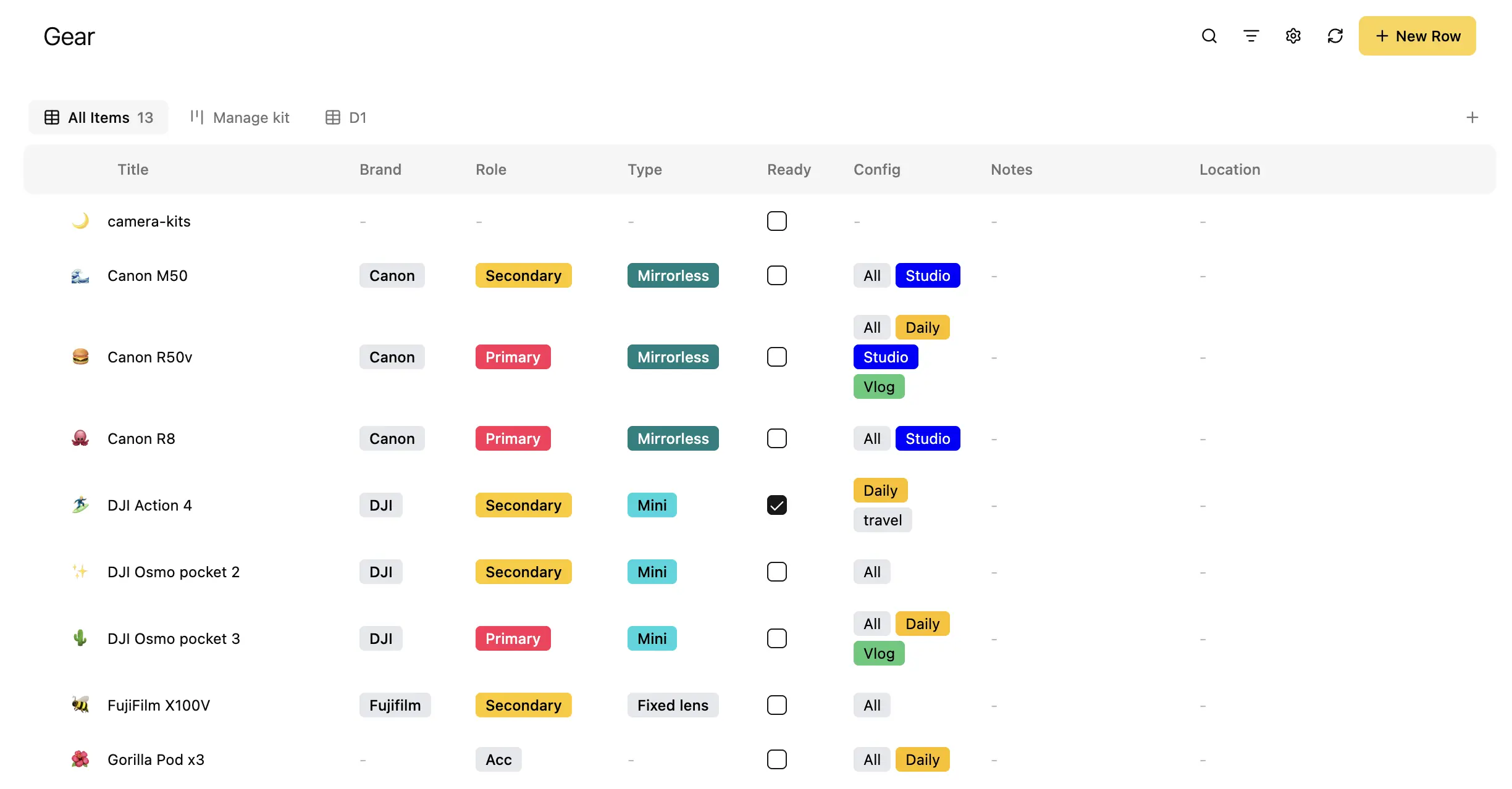
Creating a database
To create a database simply click ‘+’ in the sidebar and under organised folders choose a template. Tables is the base for all other templates.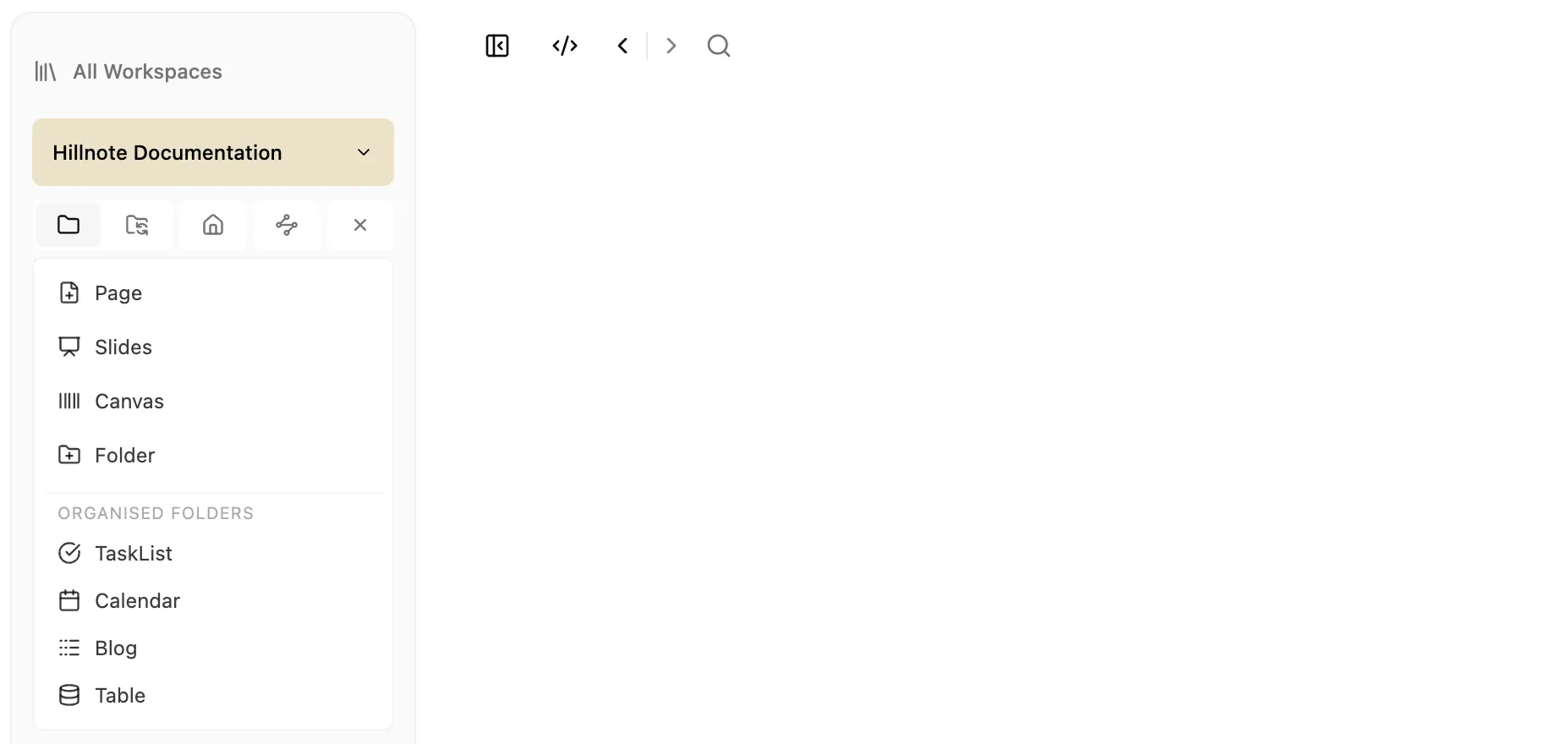
Columns
Once you create a database the next step is defining the columns you’d like to have and track across your rows. Click on the ⚙️(gear) icon in the top right. This opens the edit columns dialog to set your columns.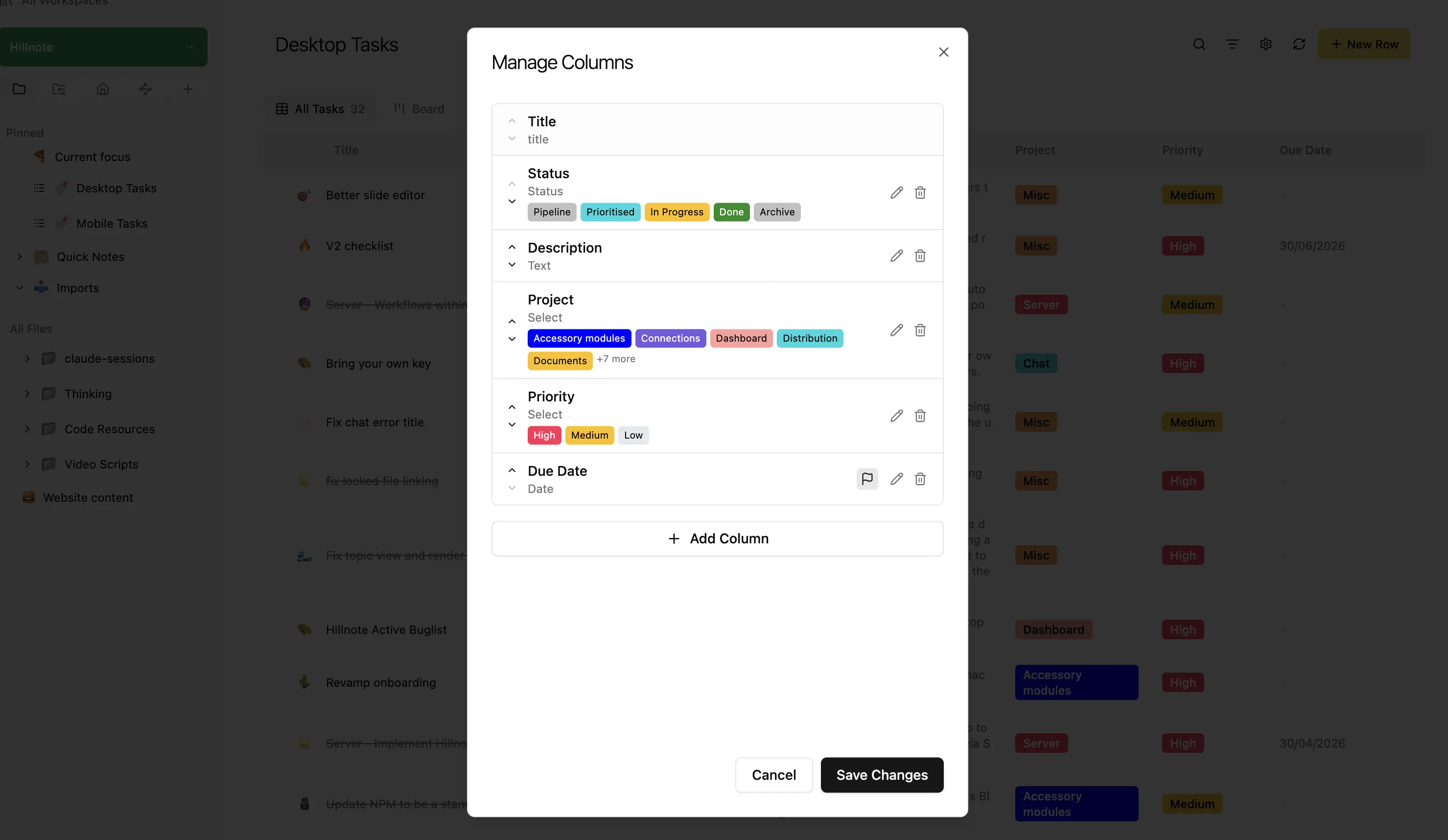 You can reorder the columns by using the arrow buttons next to the title or add a new column by clicking the “+ Add Column” button.
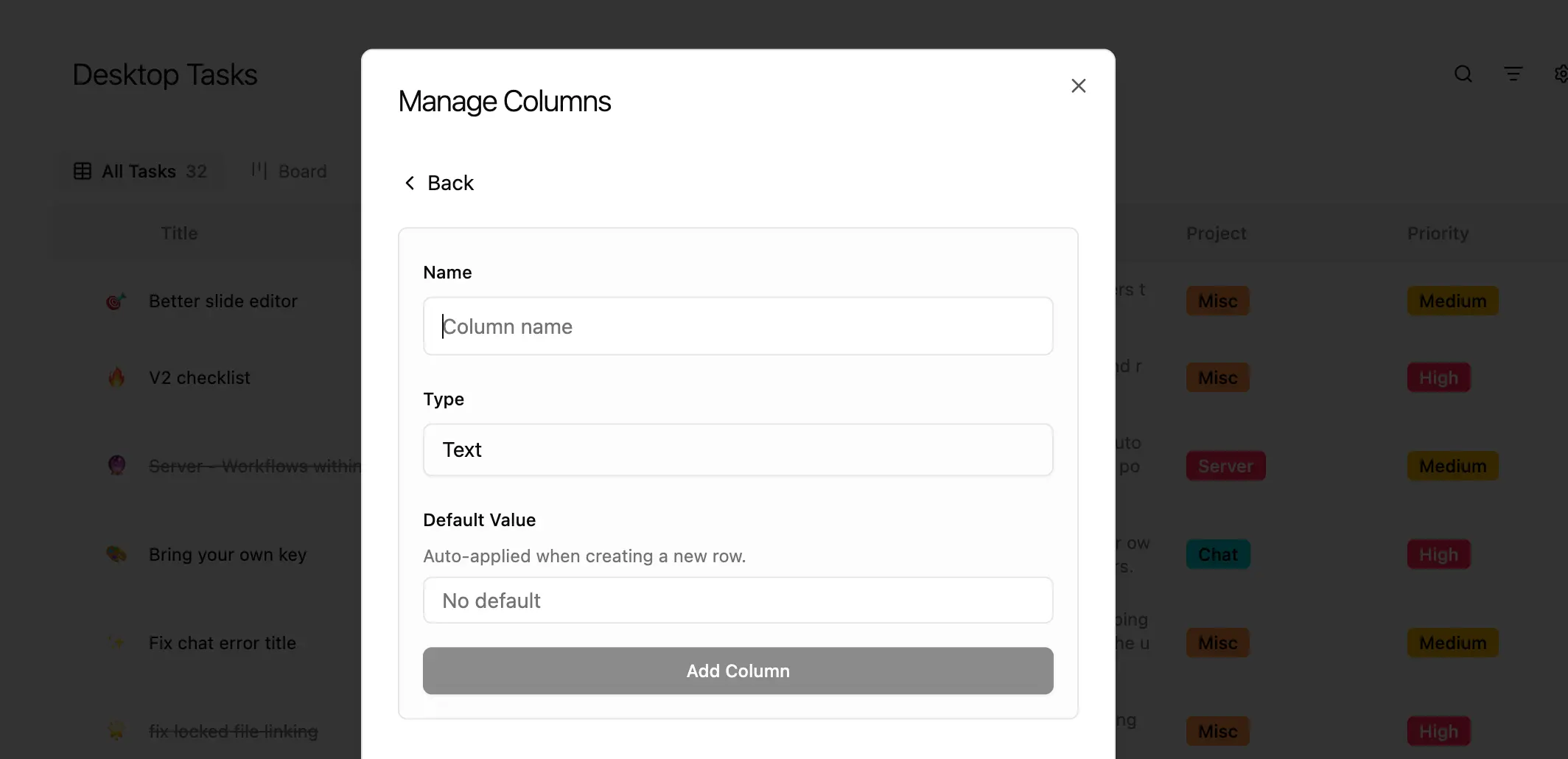 Every column consists of 3 values.
Name: A name or unique value to track
Type: The input type
Default value: An optional default to use when creating new rows
Types of columns
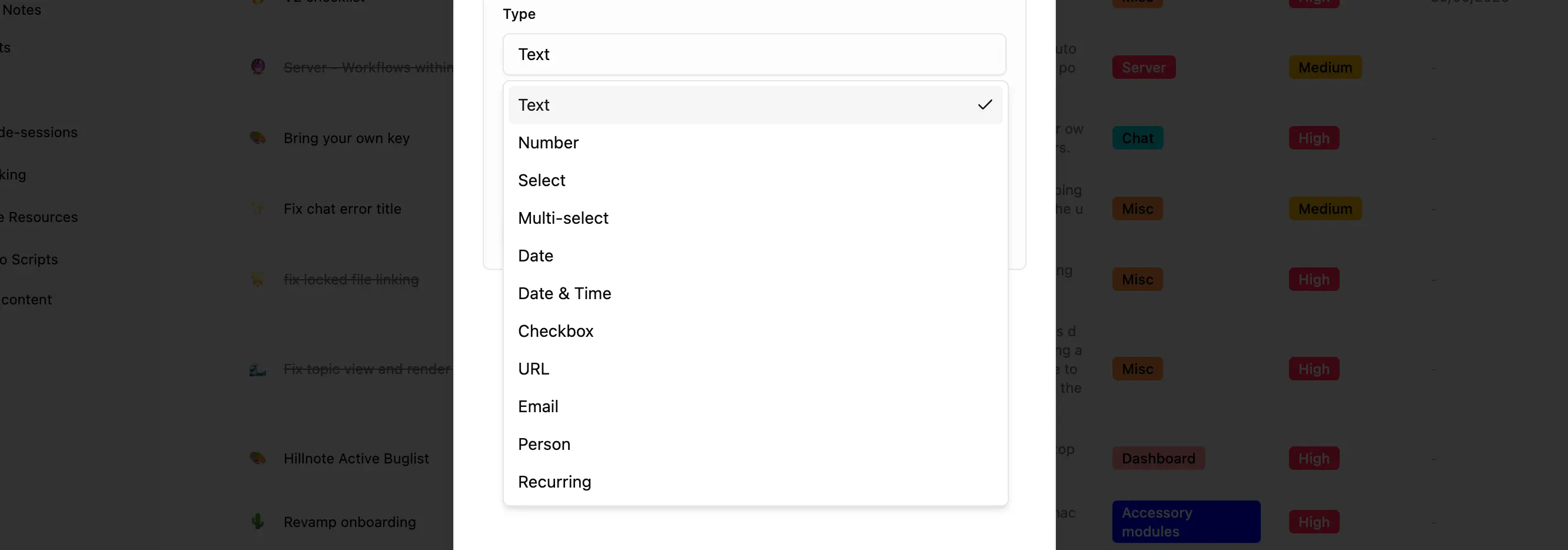
There are 13 types of columns currently.
- Text
- number
- Select
- Multi-select
- Date
- Date and Time
- Checkbox
- URL
- Person
- Recurring
- Status (only 1 allowed per database)
- Recurring (Only present when a status column is already added to the database)
Special column settings
Some columns types have additional settings to help manage nuances in how they are tracked.
Status
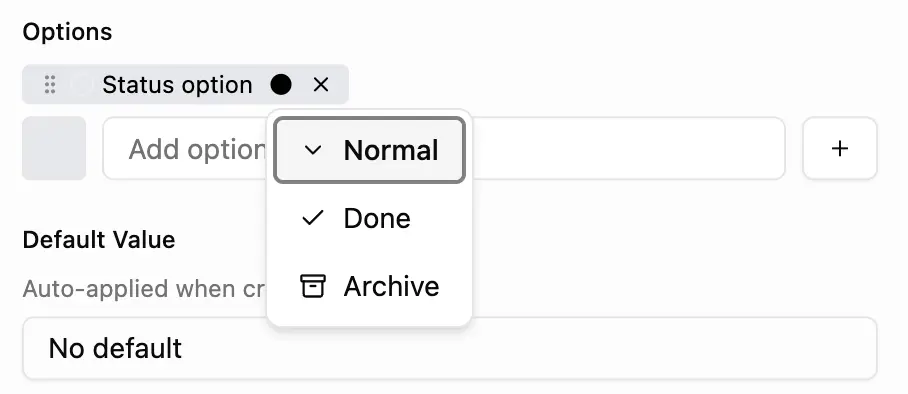
As you add status options you could assign values to them (namely normal, done and archive)
- Normal: these are treated like every other selection item
- Done: Tasks in this column are treated as completed. This helps in tracking end dates, reminders, etc.
- Archive: Tasks here are usually collapsed, given less emphasis, etc.
 Date
Date
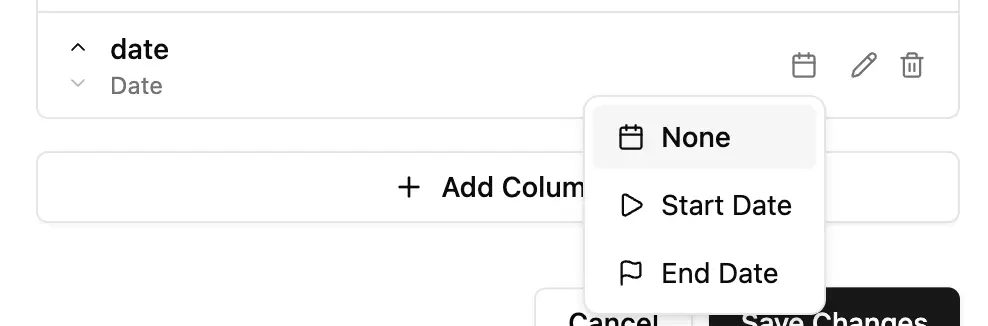
Dates once added can be marked as start and end dates to track against tasks, on calendars, etc. Only one column per database can carry these values.
Recurring
If a database contains a status column you can also add a recurring column. this allows you to setup recurring tasks which reset to the selected column on a specific interval. This option is set per row item.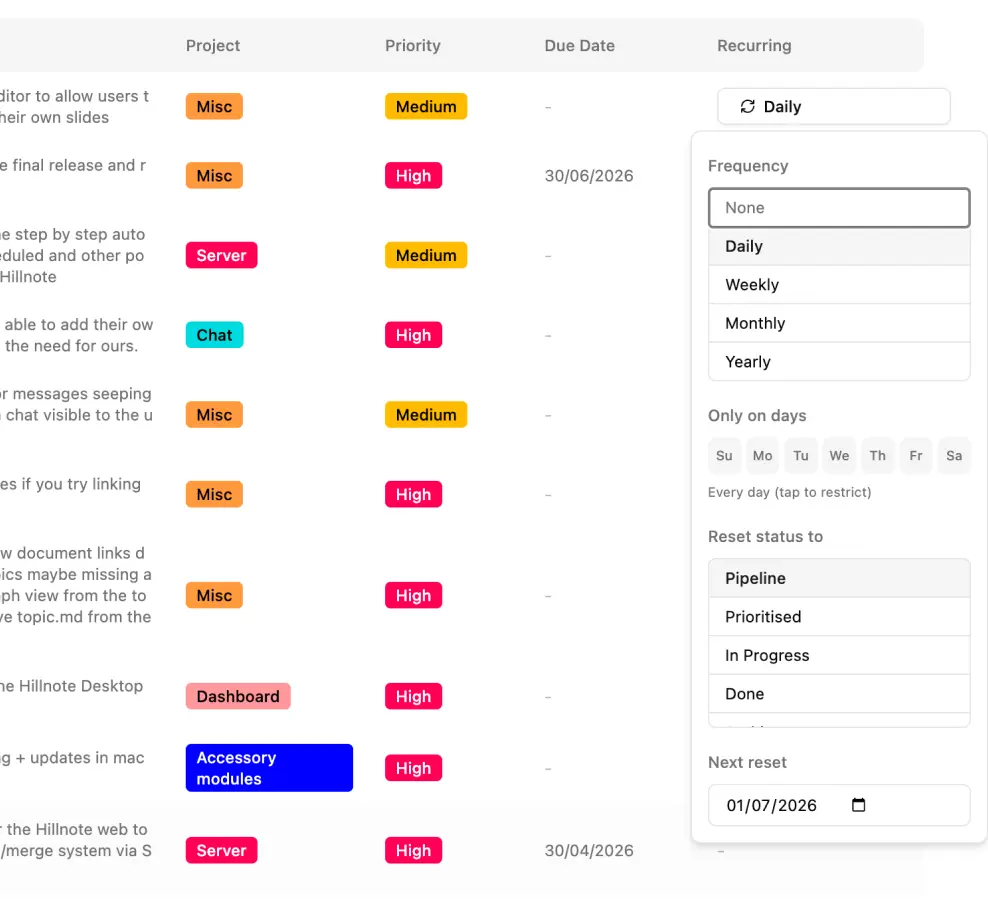
Views
Views allow you to perceive and organise your data differently. Hillnote currently supports the following types of views.
Table view
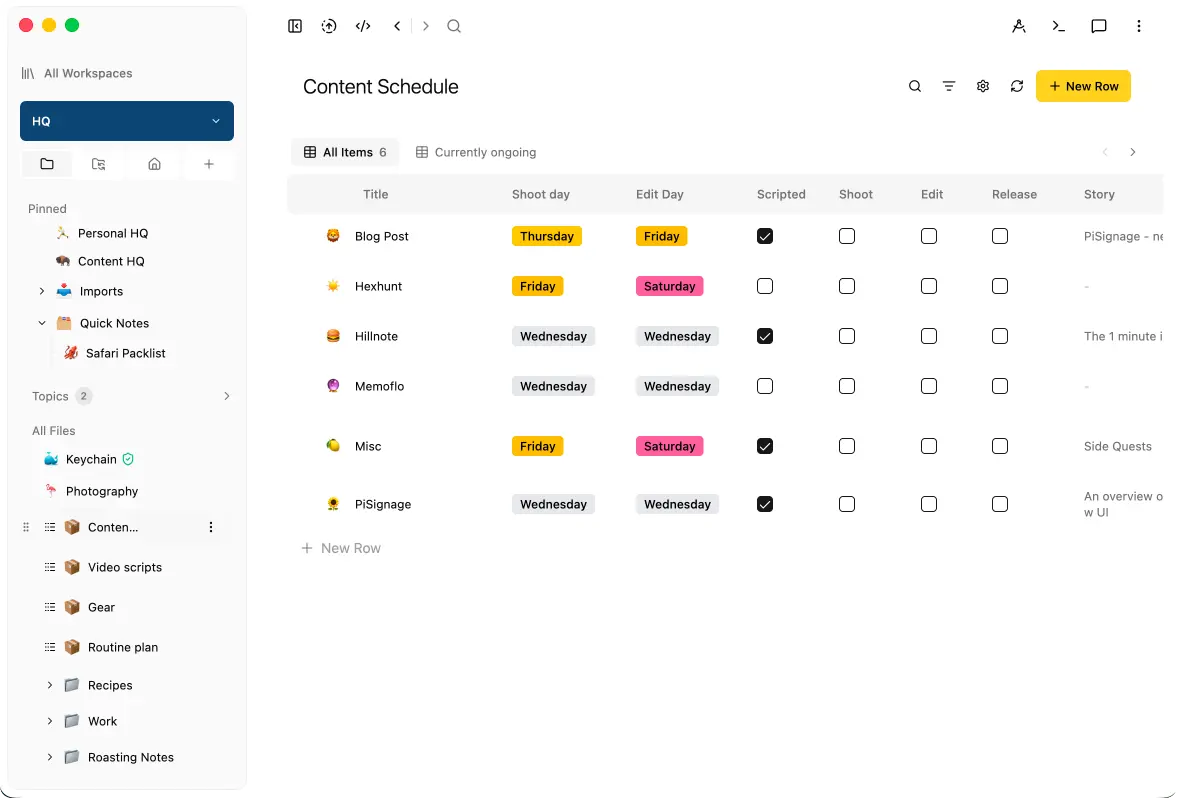
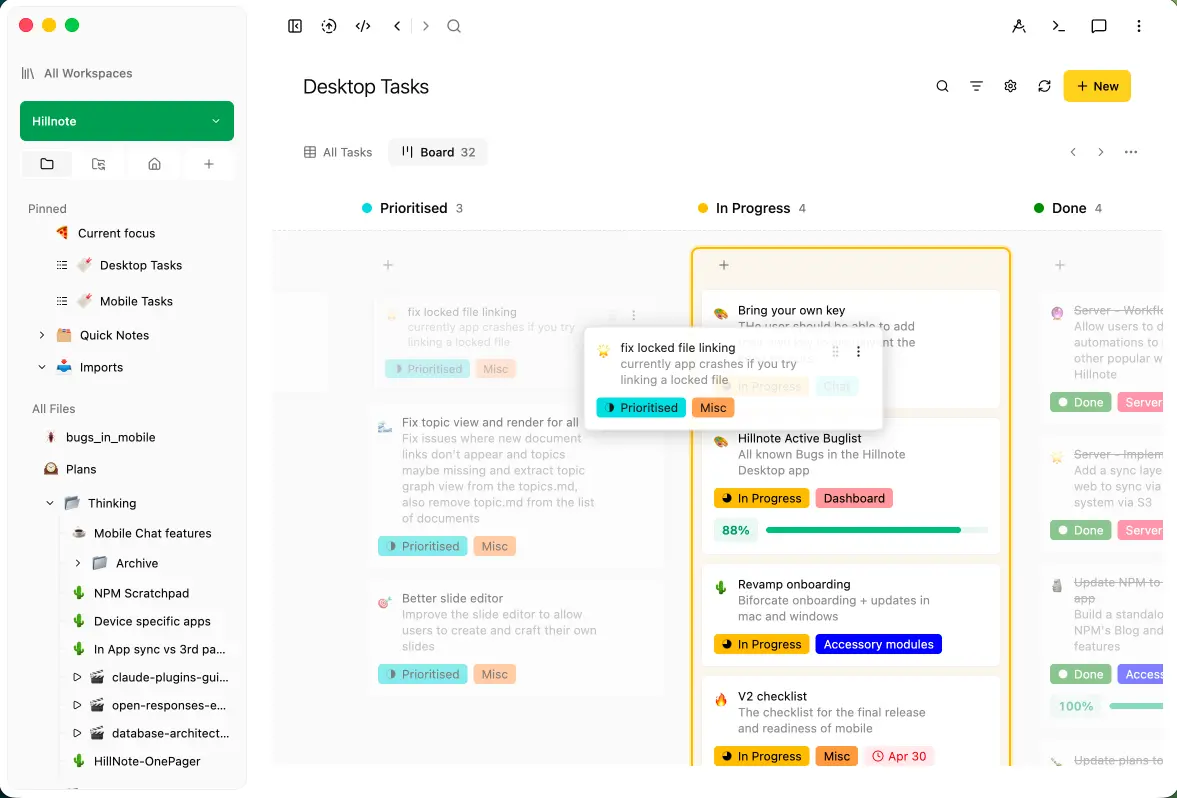
Kanban Boards
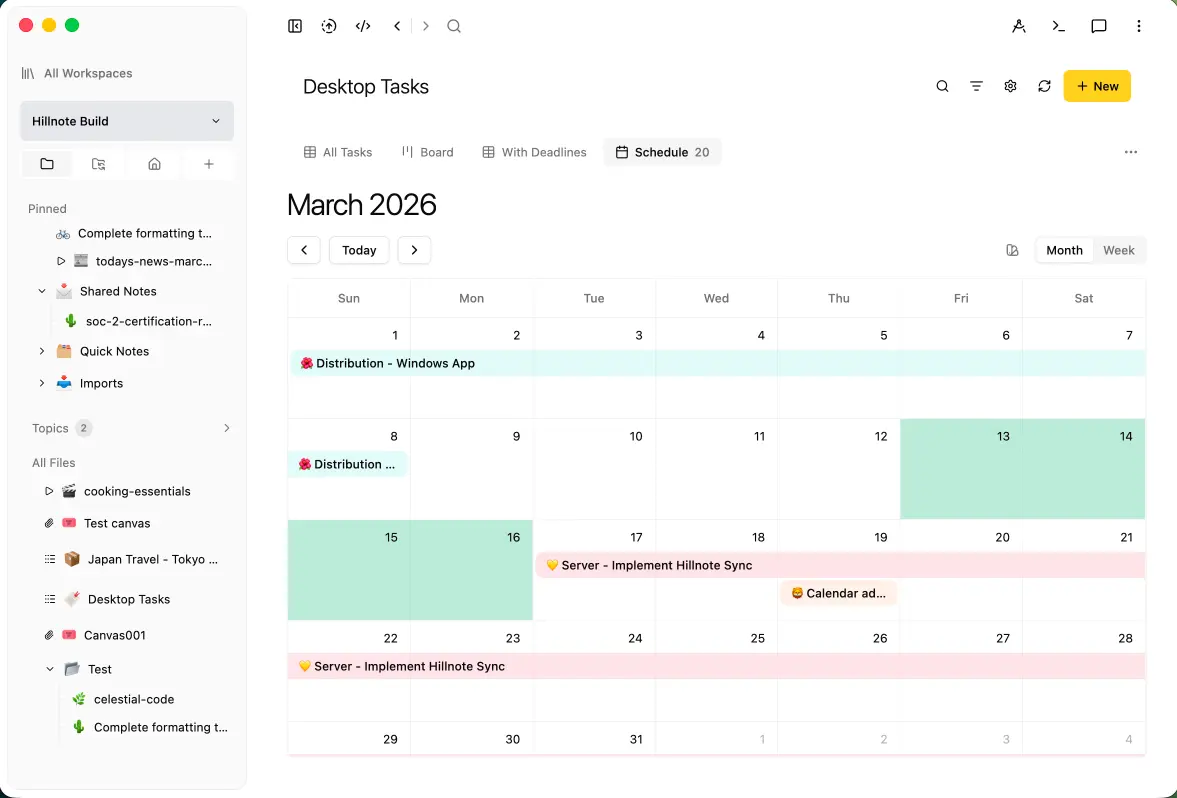
Calendar views
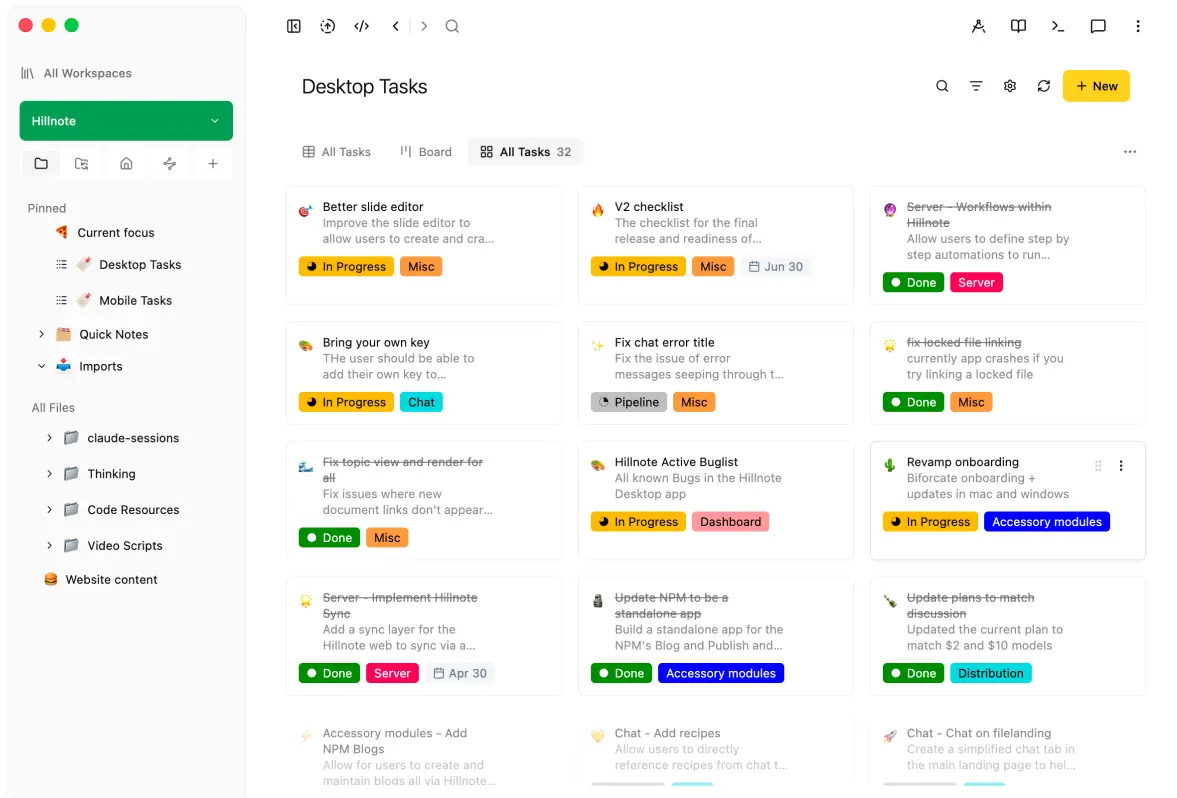
Gallery
Charts
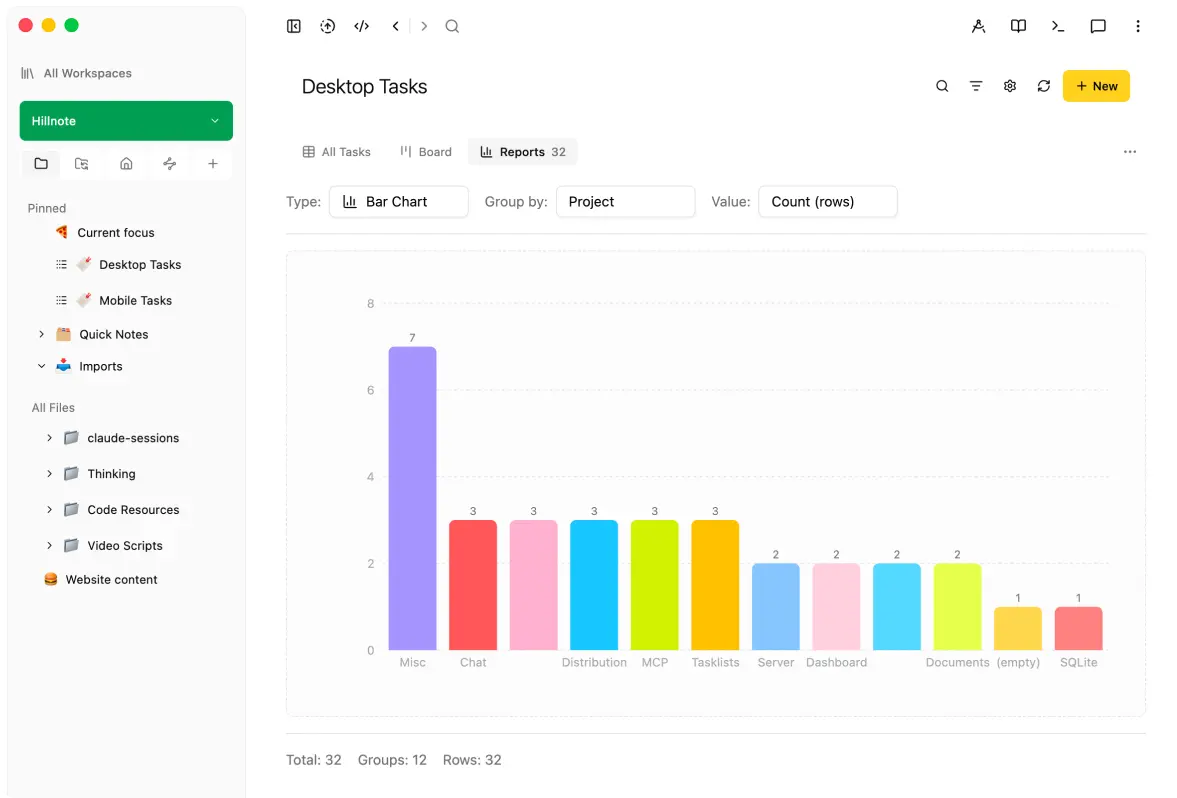
Filters in views
Views can show filtered versions of all rows. Simply add a filter by clicking on the filters icon and set the filter rules to apply the same. Filters are saved to the view and remain isolated to the same.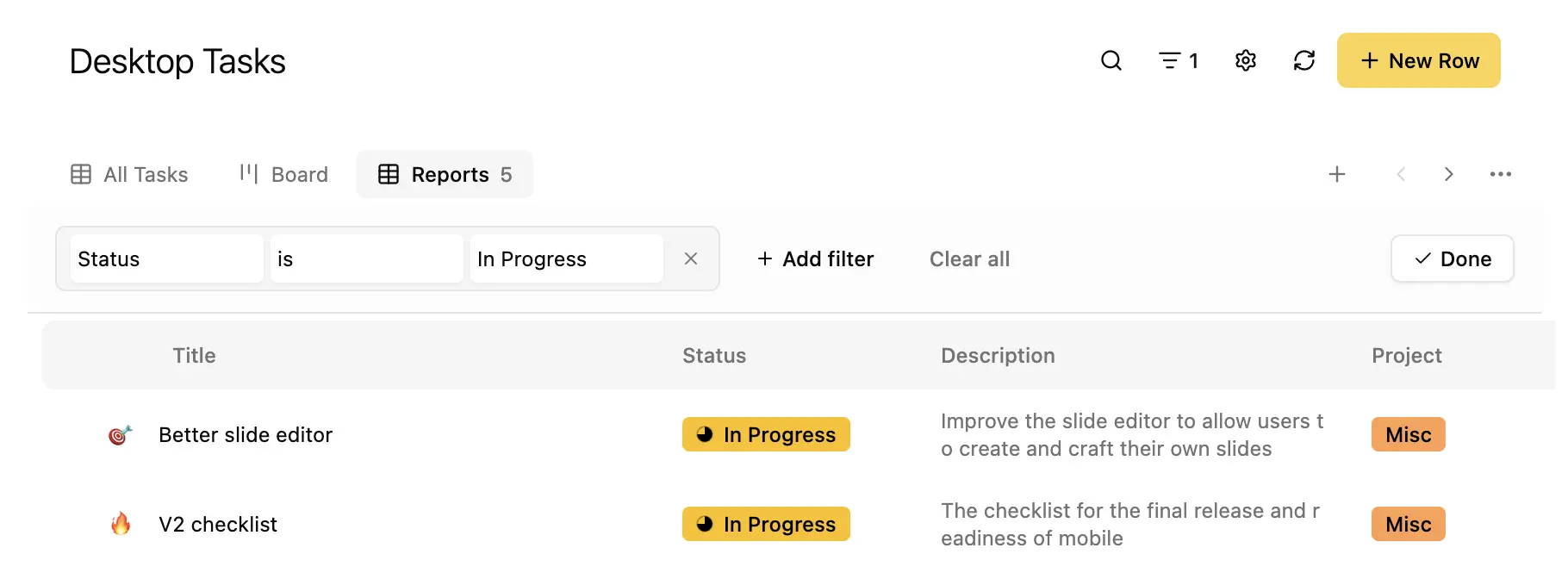
Adding a row
Adding a row is as easy as clicking the “+ New Row” button in the top right of the database. Fill in the values and you are done!
Some quick tips
Embedding a database within a document
You can embed a database in a Pages by typing ‘@’ and referencing the database. This adds an interactive embed within the document.
Using triggers to trigger new workflows from your database
You can setup triggers within the database to fire workflows on the server (Claude routines, Hillnote routines, etc) based on database actions.